
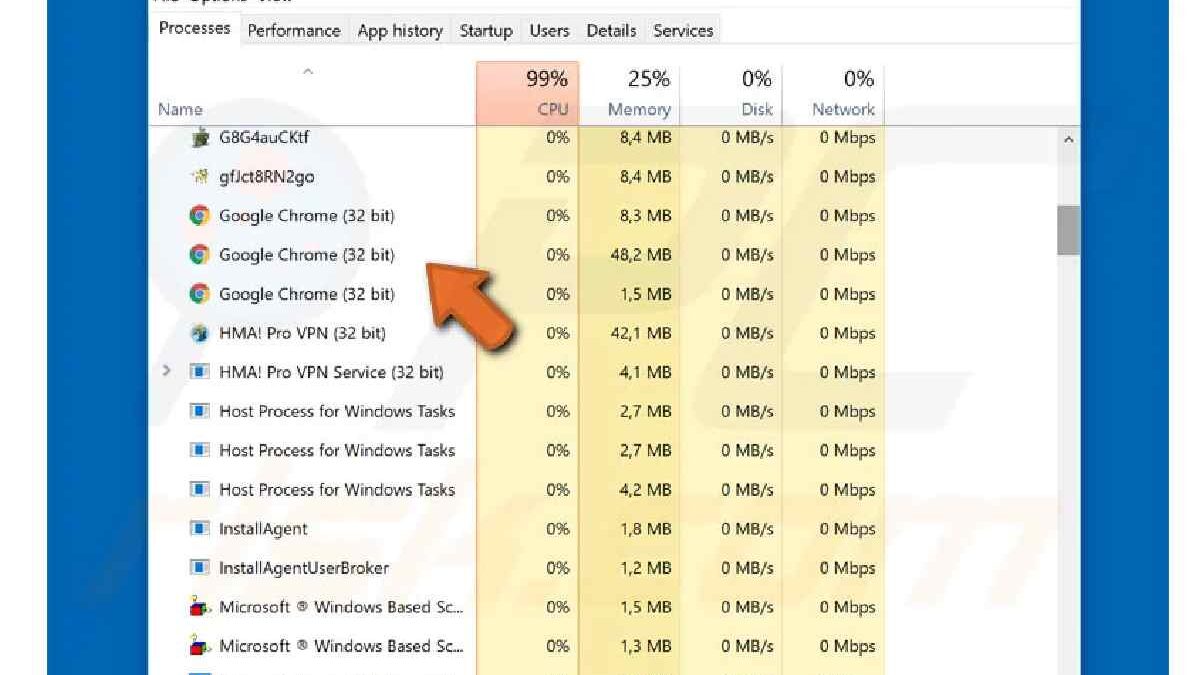
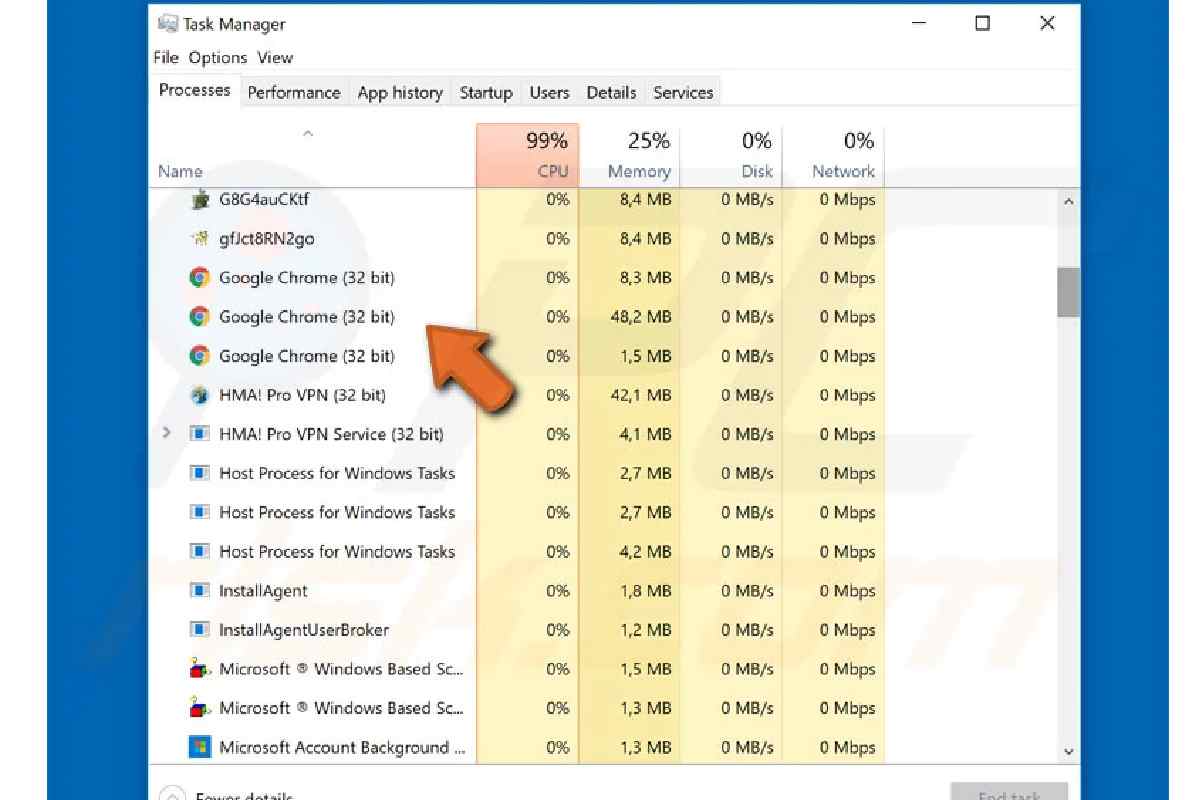
The Chrome.exe virus is a type of malware that disguises itself as the real browser file used by Google for its Google Chrome. Cybercriminals create fake versions of this file to secretly run harmful activities on your computer, such as showing unwanted ads, stealing personal data, or using system resources without permission.
This virus usually enters a device through unsafe downloads, cracked software, suspicious email attachments, or infected websites. Once installed, it may run in the background and appear as a normal Chrome process, making it difficult for users to detect.
Table of Contents
How to Remove the Chrome.exe Virus?
The Chrome.exe virus is malware that disguises itself as the legitimate browser from Google. It may slow your system, show ads, steal data, or run in the background.
| Step | Action | Details |
| 1. Check Task Manager | Identify fake Chrome | Press Ctrl + Shift + Esc and look for suspicious Chrome processes using high CPU or memory. |
| 2. End Suspicious Processes | Stop malware | Right-click suspicious Chrome.exe → End Task. |
| 3. Uninstall Unknown Programs | Remove harmful apps | Go to Control Panel → Programs → Uninstall and remove unknown or recently installed software. |
| 4. Reset Chrome Settings | Remove unwanted extensions | Open Chrome → Settings → Reset and clean up → Restore default settings. |
| 5. Remove Extensions | Delete harmful add-ons | Go to Extensions and remove anything unfamiliar. |
| 6. Scan with Antivirus | Detect malware | Use trusted antivirus like Kaspersky, Bitdefender, or Quick Heal. |
| 7. Delete Temporary Files | Clean infected files | Use Disk Cleanup or system cleaner tools. |
| 8. Check Startup Programs | Prevent auto-launch | Disable suspicious apps in Startup settings. |
| 9. Update Windows | Improve security | Install updates from Microsoft to patch vulnerabilities. |
| 10. Reinstall Chrome | Final cleanup | Uninstall and download fresh Chrome from the official website. |
Chrome Exe Virus Definition
Chrome Exe Virus — a class of malware that disguises itself as Google Chrome’s chrome.exe process (or replaces it) to run malicious payloads, harvest data, or hijack browsing. It differs from the official chrome.exe by file location, signatures, and behavior.
Who this is for
- Home users who notice unusual Chrome behavior.
- Small-business owners handling internal desktops.
- IT technicians troubleshooting browser-related malware.
Who should avoid this guide
- Users uncomfortable performing system changes (seek professional IT help).
- Machines under enterprise management where admin policies or backups must be preserved—contact your IT team first.
Quick detection checklist
- Multiple exe processes when Chrome is closed.
- exe running from C:\Users\<name>\AppData\Temp or other non-standard path.
- High CPU/network usage from exe.
- Browser redirects, unexplained pop-ups, or unknown extensions.
Why the Chrome.exe Virus Is Dangerous?
| Danger | Explanation | Possible Impact |
| Data Theft | Fake Chrome processes may collect saved passwords, browsing history, and personal information. | Identity theft, hacked accounts, financial loss |
| Banking & Payment Risk | Malware can capture login details or OTPs during online transactions. | Unauthorized transactions |
| High CPU Usage | The virus may run hidden background tasks (like crypto mining). | Slow performance, overheating |
| Spyware Activity | Can monitor keystrokes and screen activity. | Privacy invasion |
| Additional Malware Installation | It may download more harmful software automatically. | Increased security threats |
| Browser Hijacking | Changes homepage, search engine, or installs extensions. | Redirects to malicious websites |
| System Instability | Corrupts files or interferes with normal processes. | Crashes and errors |
| Network Exploitation | Uses your internet connection for malicious activities. | Data leaks, suspicious traffic |
| Security Bypass | Disables security settings or antivirus tools. | Reduced protection |
| Spread to Other Devices | Can spread through shared networks or infected files. | Wider infection risk |
How the Chrome.exe Virus Is Usually Detected?
The Chrome.exe virus is designed to look like the real browser process from Google used by Google Chrome, so detection often depends on identifying unusual system or browser behavior. Below are the common ways it is discovered.
1️. Unusual System Performance
One of the first signs is slow system performance. The fake Chrome process may run in the background and use excessive CPU, memory, or battery even when the browser is closed. Users may notice their computer heating up or becoming laggy.
2️. Multiple Chrome Processes
If many Chrome.exe processes appear in Task Manager when Chrome is not open, it could indicate malware. The virus may run hidden tasks such as mining cryptocurrency or collecting data.
3️. Frequent Pop-Ups and Ads
Unexpected pop-up ads, banners, or automatic redirects to suspicious websites are strong warning signs. This happens because the malware injects advertisements or changes browsing settings.
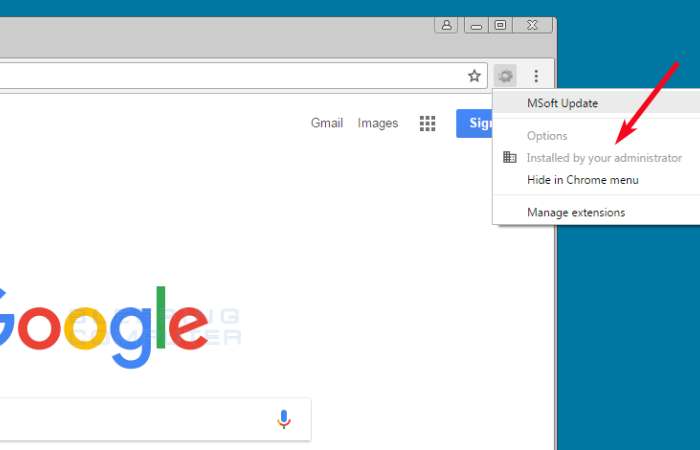
4️. Unknown Extensions or Toolbars
The virus often installs browser extensions without user permission. These extensions may:
- Track browsing activity
- Redirect search results
- Display unwanted ads
Checking installed extensions is a simple way to detect suspicious activity.
5️. Antivirus or Security Alerts
Security software such as Bitdefender, Kaspersky, or Quick Heal may flag unknown or harmful Chrome.exe files during a scan. These alerts help identify malware early.
6️. Suspicious File Location
The real Chrome.exe file is usually stored in the official installation folder. If a Chrome file is found in unusual locations like:
- Temp folders
- AppData or random directories
- Startup folders
it may be a malicious copy.
7️. Network and Data Activity
Unexpected internet usage, even when the browser is not open, can indicate data transmission or remote control activity. Monitoring network traffic can help detect this.
8️. Changes in Browser Settings
Users may notice:
- Changed homepage or search engine
- New bookmarks
- Disabled security features
These changes are often caused by malware.
Tools
| Tool | Purpose | Notes |
| Windows Defender | First-line scanner | Built-in, free, works well |
| Malwarebytes Free | Malware detection & removal | Excellent for PUPs and trojans |
| HitmanPro | Second-opinion scanner | Lightweight, on-demand |
| Autoruns (Sysinternals) | Find hidden startup items | Advanced users only |
Benefits & drawbacks of these removal steps
Benefits
- Removes common variants safely.
- Preserves user data when performed carefully.
- Uses free, reputable tools.
Drawbacks
- Manual steps risk deleting legit files if done incorrectly.
- Rootkits or advanced malware may require professional tools or reinstalling Windows.
Common mistakes (avoid these)
- Deleting the exe without confirming the file path.
- Ignoring backups — always have a recent backup before major changes.
- Reconnecting to the internet before scans finish (can re-download payloads).
- Installing random “chrome.exe remover” tools from untrusted websites.
Myths vs Facts
| Myth | Fact |
| If a file is named chrome.exe, it’s safe. | File name alone doesn’t prove legitimacy — check file path & signature. |
| Deleting chrome.exe fixes everything. | You must remove all persistence (services, scheduled tasks, registry entries). |
| Reinstalling Chrome is enough. | Reinstall helps but doesn’t remove OS-level malware or persistence. |
Charge of Removing Chrome.exe Virus
The cost depends on whether you remove it yourself, use antivirus software, or hire a technician.
| Method | Estimated Cost (India) | Estimated Cost (UK) | Details |
| DIY Removal (Manual Steps) | ₹0 | £0 | Use Task Manager, uninstall programs, reset Google Chrome, run built-in tools. |
| Free Antivirus Scan | ₹0 | £0 | Use free versions of antivirus software. |
| Paid Antivirus Software | ₹800 – ₹3,000 per year | £20 – £60 per year | Tools like Bitdefender, Kaspersky, or Norton. |
| Local Computer Technician | ₹500 – ₹2,000 (one-time) | £40 – £100 (one-time) | Manual virus removal service at shop or home visit. |
| Advanced Malware Removal Service | ₹2,000 – ₹5,000 | £80 – £150 | Deep system cleaning, data recovery if needed. |
| Remote IT Support | ₹1,000 – ₹3,000 | £50 – £120 | Online expert fixes the issue remotely. |
Practical Tips & Real Examples
Fortunately, if you take the proper precautions, removing the Chrome.exe infection is relatively simple.
One of the most excellent antivirus programs on the market in 2022 is the best approach to clean your device of trojans and other malware files. A thorough antivirus program (I suggest Norton 360) will find and safely remove the Chrome.exe virus and guard against future malware infections on your machine.
Step 1. Run a Full System Scan With Your Antivirus
- Before beginning a scan, you must unplug all USB devices from your computer. The Mobile phones, USB sticks, and portable hard drives are all included in this.
- These devices are susceptible to malware replication, such as the Chrome.exe infection.
- The next step is to use your antivirus to perform a thorough virus scan (I recommend Norton).
- A full-disk scan, which will scan every file and process on your computer, should choose. The infected files are stored in a quarantine vault when malware is discovered during the full-disk scan.
- Remember that the full-disk scan could take 4-5 hours, so I advise scheduling it for a convenient time or when you won’t be using your computer.
- Additionally, please wait until the scan finish before ending it.
- Even though the compromised file is on the list of infected files, malware can still spread, so you want to ensure your antivirus has been discovered in every instance.
- The Chrome.exe virus and all other instances of malware on your machine should be quarantined after the thorough scan is complete. You are now prepared for step two. Malwarebytes — Malware Removal Support
Step 2. Delete Any Infected Files
- The quarantine vault of your antivirus program will show all the malware your full scan found.
- The ideal action sequence is to remove all infected files, although expert users can browse the list of infected files and decide to keep false positives.
- However, you should only keep a file if you convince it is safe.
- After going through the list and deleting each infected file, you must restart your computer.
- It is because malware occasionally stores itself in your computer’s memory and keeps running even after a scan.
- However, when you restart your computer, Windows will reload its memory without the malicious process.
- Run another complete disc scan when your computer restart to make sure all traces of the infection have been eliminated.
The good news is that the second scan shouldn’t take as long because software like Norton can remember which files have already been examined and look for errors or new items that have arrived since your last scan.
Step 3. Keep Your Device Protected from Getting Re-Infected
- In 2022, cybercriminals will continue to create sophisticated new ways to infect users’ gadgets.
- Users must exercise caution and take a few preventative measures to safeguard themselves.
- Even though it might seem complicated, if you follow these instructions, you can keep your computer and private information secure.
Prevention and Protection from Chrome.exe Virus
| Prevention Method | What to Do | Why It Helps |
| Download from Official Sources | Install software only from trusted sites and the official Google Chrome website. | Prevents fake or infected files. |
| Use Trusted Antivirus | Install reliable security tools like Bitdefender, Kaspersky, or Quick Heal. | Detects and removes malware early. |
| Keep Windows Updated | Regularly update your system from Microsoft. | Fixes security vulnerabilities. |
| Enable Firewall Protection | Turn on Windows Firewall or security firewall. | Blocks suspicious network activity. |
| Avoid Cracked Software | Do not install pirated or modified programs. | Reduces malware infection risk. |
| Check Browser Extensions | Review and remove unknown Chrome extensions. | Prevents browser hijacking. |
| Use Strong Passwords | Enable two-factor authentication (2FA) for accounts. | Protects against data theft. |
| Be Careful with Email Links | Avoid clicking unknown attachments or suspicious links. | Prevents phishing attacks. |
| Regular System Scans | Perform weekly full system scans. | Identifies hidden threats. |
| Monitor Task Manager | Check for unusual Chrome processes. | Helps detect early infection signs. |
Update Your Drivers, OS, and Software
- When software makers provide an update, it’s typically to fix a security flaw that hackers have abused or exploited.
- Your machine is vulnerable to attacks using old software, operating systems, or drivers because they lack these security patches.
FAQs
Q1: Is chrome.exe always malware?
A: No. Legitimate Chrome runs as chrome.exe from C:\Program
Files\Google\Chrome\Application. Check file location and digital signatures.
Q2: Can I remove the Chrome Exe virus without reinstalling Windows?
A: Often yes — with anti-malware scans and removal of persistence (startup items, scheduled tasks). If malware is deep-rooted, reinstalling may be necessary.
Q3: Will resetting Chrome remove the virus?
A: Resetting removes malicious extensions and settings but won’t remove OS-level malware that impersonates
Q4: Which free tool is best for removal?
A: Malwarebytes combined with Windows Defender is a strong free option for most users.
Q5: How can I prevent reinfection?
A: Keep software updated, use limited accounts, avoid suspicious downloads, and maintain backups.
Final Summary
Chrome Exe Virus is not a genuine file of Google Chrome it is malware and it masquerades as chrome.exe to steal your data, hijack you, or slow down your computer. The factor that needs to be found in order to correct it is the determination of whether the file is genuine (right file path) or bad (wrong location, using a lot of CPU, not known activity).