
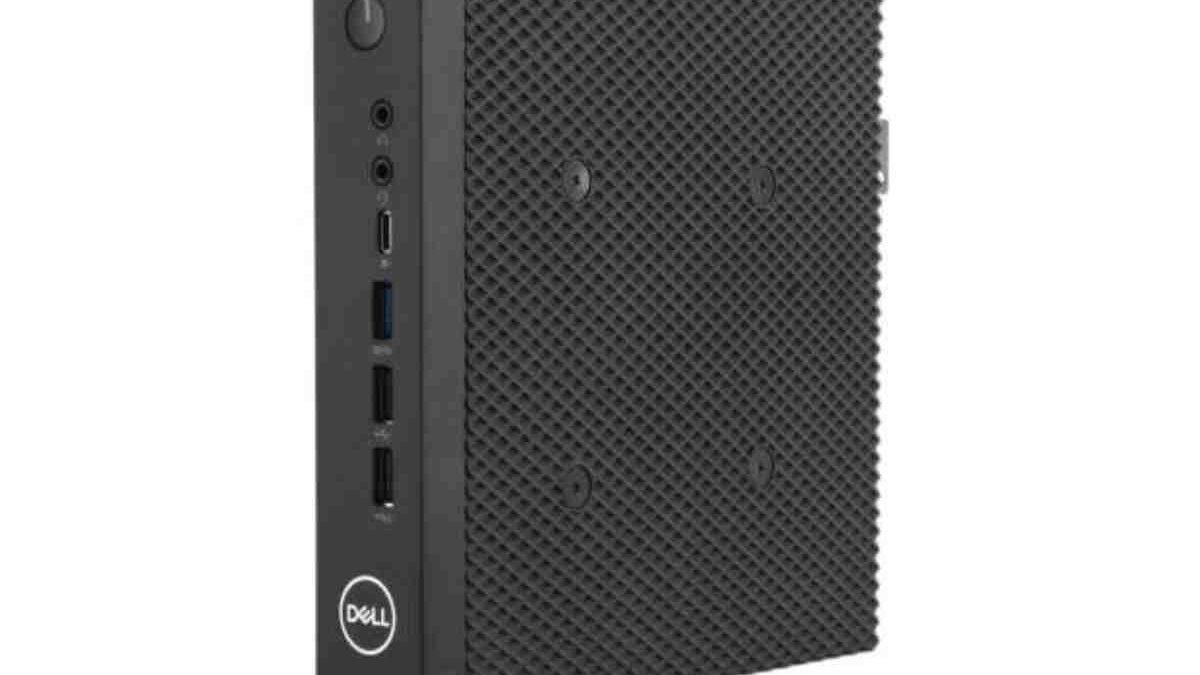
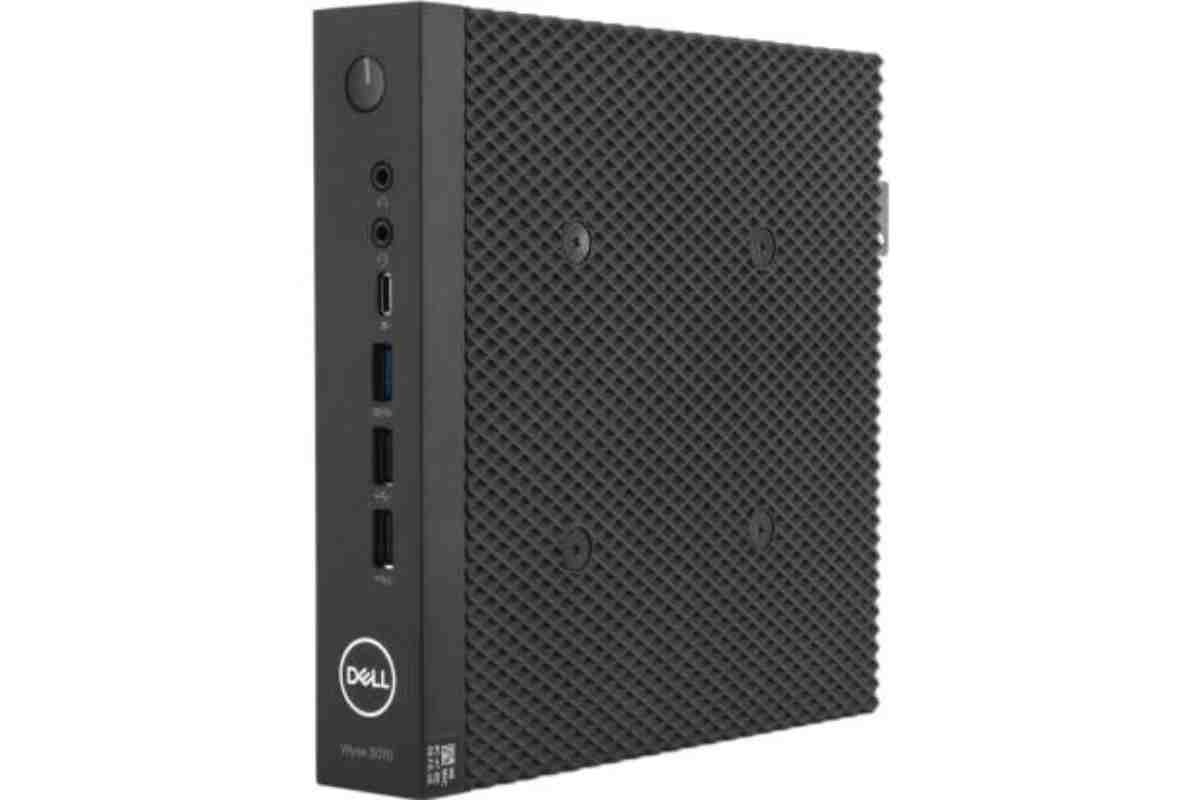
What is Dell Wyse 5070: Enjoy the greatest freedom possible with various legitimate OS, connection, and form factor choices. They use deployment and security practices that are well known worldwide.
Table of Contents
Overview of Dell Wyse 5070
The Dell Wyse 5070 is a small form-factor desktop device that connects to remote servers instead of running heavy applications locally. It allows companies to manage computing resources centrally, improving security, reducing maintenance costs, and simplifying IT management.
It supports operating systems such as Dell ThinOS, Windows 10 IoT Enterprise, and Linux-based clients, and integrates with platforms like VMware Horizon, Citrix Virtual Apps and Desktops, and Microsoft Azure Virtual Desktop.
What is the Dell Wyse 5070 used for?
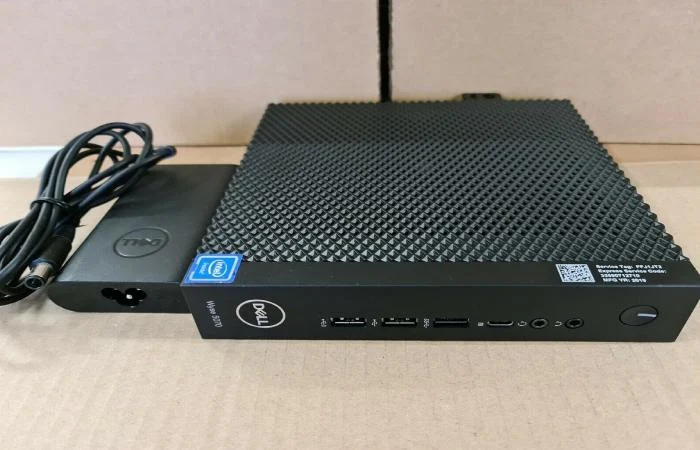
Wyse 5070 is the best versatile, scalable, and capable thin client platform, setting the new standard for the price to perform on a dramatically simplify and standardized single light client platform for easy earning across the enterprise, helping extend security, cost, and manageability benefit of thin clients.
The Dell Wyse 5070 is a thin client device that allows users to access remote desktops and applications hosted on servers. Instead of using powerful local hardware, it relies on network connectivity to deliver computing resources.
Key Characteristics
| Feature | Description |
| Device Type | Thin client workstation |
| Operating Systems | ThinOS, Windows 10 IoT Enterprise |
| Processor | Intel Celeron / Pentium CPU options |
| Storage | Small internal flash storage |
| Connectivity | Ethernet, USB, DisplayPort |
| Use Case | Virtual desktops, cloud computing |
Because of its lightweight design and low power consumption, the Wyse 5070 is commonly used in:
- Corporate offices
- Hospitals and healthcare systems
- Educational institutions
- Government organizations
- Call centers
Main Features of Dell Wyse 5070
- Compact and Energy Efficient
The Dell Wyse 5070 is a small device that consumes significantly less power than traditional desktop computers. This reduces electricity costs and helps organisations maintain eco-friendly IT infrastructure.
- Strong Security
Since most data is stored on secure servers instead of the local device, there is less risk of data loss or theft. Thin clients are commonly used in environments that require strict data security.
- Centralized Management
IT administrators can manage multiple Wyse devices from a central console. This makes it easier to deploy updates, install applications, and control user access.
- Flexible Virtual Desktop Support
The Wyse 5070 supports major virtualization platforms such as:
| Virtualization Platform | Purpose |
| Microsoft Azure Virtual Desktop | Cloud-based remote desktop services |
| VMware Horizon | Enterprise virtual desktop infrastructure |
| Citrix Workspace | Secure application and desktop delivery |
This compatibility allows businesses to integrate the thin client into existing IT environments.
Hardware Specifications of Dell Wyse 5070
Below is a simplified specification overview.
| Specification | Details |
| Processor | Intel Celeron J4105 or Pentium Silver |
| RAM | 4GB / 8GB DDR4 |
| Storage | 16GB – 64GB Flash |
| Graphics | Intel UHD Graphics |
| Ports | USB 2.0, USB 3.0, DisplayPort, Ethernet |
| Network | Gigabit LAN |
These specifications are designed for remote computing, where most heavy processing happens on remote servers.
Why Organisations Use Dell Wyse 5070?
Many companies prefer thin clients like the Dell Wyse 5070 for several reasons.
- Lower IT Costs
Thin clients are cheaper to maintain compared to traditional desktops because they have fewer moving parts and require less maintenance.
- Better Security
Sensitive data remains on centralized servers rather than individual machines.
- Easier Updates
Administrators can push updates to hundreds of devices simultaneously.
- Longer Device Lifespan
Thin clients typically last longer because they run fewer local processes.
Why Updating Dell Wyse 5070 Is Important
Keeping your Dell Wyse 5070 updated is not just a routine task—it is crucial for maintaining performance, security, and compatibility.
| Benefit | Explanation |
| Improved Security | Updates patch vulnerabilities and prevent cyber threats |
| Better Performance | Firmware updates can improve speed and responsiveness |
| Compatibility | Ensures compatibility with new virtualization platforms |
| Bug Fixes | Resolves system glitches and operational issues |
| New Features | Some updates introduce additional tools and improvements |
Updating the Dell Wyse 5070 Thin Client is important for security, performance, compatibility, and system stability. Organizations that use thin clients in offices, hospitals, or call centers must regularly update the device’s BIOS, firmware, and ThinOS operating system to keep systems safe and efficient.
Security Protection
One of the main reasons to update the device is security. Older versions of the thin-client operating system may contain vulnerabilities that hackers can exploit. Security researchers found that some Dell Wyse thin clients running older ThinOS versions could be accessed or manipulated through configuration files if they were not properly secured.
Updating the system installs security patches that fix these vulnerabilities and protect sensitive company data.
Fixing Software Bugs
Updates often include fixes for software errors, crashes, or connection issues. Firmware and OS updates correct bugs that could affect login sessions, remote desktops, or network connectivity. This helps the thin client run more smoothly and reduces downtime.
Better Compatibility With Modern Systems
Businesses often use virtualization platforms like VMware Horizon, Citrix, or Microsoft Remote Desktop. Updates ensure the Wyse 5070 works properly with newer versions of these platforms and with tools like Wyse Management Suite for centralized management.
Without updates, devices may not connect correctly to modern cloud or VDI systems.
Improved Performance
New firmware and operating system updates can optimize system resources such as CPU usage, graphics performance, and memory management. This improves the experience for users running virtual desktops, video conferencing, or remote applications.
Device Stability and Reliability
Regular updates improve system stability by resolving compatibility issues between BIOS, firmware, and operating system versions. Dell also releases updates to address newly discovered vulnerabilities or platform issues that could compromise the system.
Better IT Management
Updated devices integrate better with enterprise management tools. IT administrators can deploy policies, updates, and configurations remotely, making it easier to manage hundreds of thin clients from a central console.
How to Update Dell Wyse 5070?
Updating the Dell Wyse 5070 ensures better security, stability, and compatibility with modern VDI environments. Updates usually include BIOS, firmware, and operating system (ThinOS or Windows IoT) updates.
Below are the common methods used by IT administrators.
Update Using Wyse Management Suite (Recommended)
Wyse Management Suite is Dell’s centralized management platform for thin clients.
Steps
- Log in to Wyse Management Suite console.
- Go to Apps & Data → OS Image Repository.
- Upload the latest ThinOS or firmware update package.
- Create a deployment policy for the device group.
- Assign the update to the Wyse 5070 devices.
- Devices automatically download and install the update during reboot.
Advantages
- Remote update for many devices
- Automated scheduling
- Centralized monitoring
Update Using USB Drive
This method is useful if the device is not connected to management software.
Steps
- Download the latest firmware or ThinOS image from the Dell Technologies support website.
- Create a bootable USB drive with the update file.
- Insert the USB drive into the Wyse 5070.
- Restart the device.
- Press F12 during startup to open the boot menu.
- Select the USB device.
- Follow the on-screen instructions to install the update.
Update Through Dell SupportAssist
Some configurations allow updates through Dell SupportAssist.
Steps
- Open SupportAssist on the device.
- Click Check for Updates.
- Select available BIOS, driver, or firmware updates.
- Install updates and restart the system.
Manual Update Through Web Interface (ThinOS)
Steps
- Open the ThinOS administrator settings.
- Enter server or repository details.
- Upload the firmware package to the server.
- Reboot the device.
- ThinOS automatically downloads and installs the update.
Dell Wyse 5070 vs Other Models
| Model | Device Type | Processor | Typical Use | Price in India | Price in UK | Price in USA |
| Dell Wyse 5070 Thin Client | Desktop thin client | Intel Celeron J4105 / Pentium J5005 | Offices, VDI, call centers | ₹8,500 – ₹18,500 | £40 – £120 | $65 – $200 |
| Dell Wyse 3040 Thin Client | Entry-level mini thin client | Intel Atom x5-Z8350 | Education labs, kiosks | ₹2,000 – ₹6,000 | £30 – £70 | $40 – $100 |
| Dell Wyse 5470 Mobile Thin Client | Laptop thin client | Intel Celeron N4000 / N4100 | Mobile workers | ₹14,000 – ₹27,000 | £250 – £450 | $300 – $600 |
What is the Dell Wyse Management Set?
Wyse Management Set is flexible hybrid cloud solution that centrally configures, monitors, manages, and optimizes Dell client power by Dell Hybrid Client and thin client, anytime, anywhere. Wyse Management set is ideal for businesses small, large and in-between.
General
| Brand | Dell Wyse |
| Model | 5070 | 1T27C |
| Product | Thin client |
| EAN | 5397184104439 |
| Language | English |
| Filetype | EN – 68 Manual (PDF), EN – 68 (PDF), EN – 66 (PDF) |
Processor
| Processor frequency | 1.5 GHz |
| Processor family | Intel® Celeron® |
| Processor model | J4105 |
| Processor cores | 4 |
| Processor boost frequency | 2.5 GHz |
Memory
| Internal memory | 4 GB |
| Internal memory type | DDR4-SDRAM |
| Memory slots | 2x SO-DIMM |
| Maximum internal memory | 8 GB |
Storage
| Total storage capacity | 16 GB |
| Storage media | eMMC |
| Card reader integrated | ✗ |
Graphics
| On-board graphics card model | Intel® UHD Graphics 600 |
Network
| Wi-Fi | ✗ |
| Ethernet LAN | ✓ |
| Cabling technology | 10/100/1000Base-T(X) |
Ports & interfaces
| DisplayPorts quantity | 2 |
| VGA (D-Sub) ports quantity | 0 |
| Ethernet LAN (RJ-45) ports | 1 |
| USB 2.0 ports quantity | 2 |
| USB 3.2 Gen 1 (3.1 Gen 1) Type-A ports quantity | 5 |
| Headphone outputs | 1 |
| Microphone in | ✓ |
| USB Type-C ports quantity | 1 |
| DC-in jack | ✓ |
| Line-out | ✓ |
| Serial ports quantity | 1 |
Design
| Product color | Black |
Display
| Display included | ✗ |
Software
| Operating system installed | Wyse ThinOS |
| Operating system language | English |
Operational conditions
| Operating system installed | Wyse ThinOS |
| Operating system language | English |
Power
| Power supply | 65 W |
| AC input voltage | 100 – 240 V |
| AC input frequency | 50 – 60 Hz |
Weight & dimensions
| Width | 35.6 mm |
| Depth | 184 mm |
| Height | 184 mm |
| Weight | 1130 g |
Packaging data
| Package width | 473 mm |
| Package depth | 238 mm |
| Package height | 94 mm |
| Package weight | 1760 g |
Packaging content
| Mouse included on selected markets only | ✓ |
| Cables included | AC |
| External power adapter | ✓ |
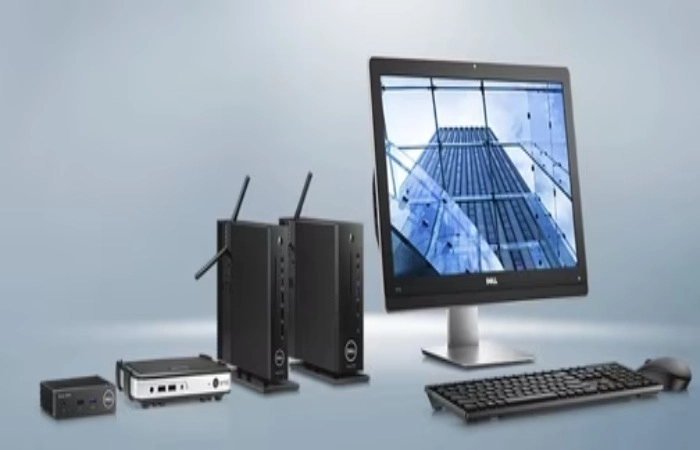
Dell Wyse Thin Client 5070
Enjoy ultimate flexibility with multiple validate OS, connectivity and form factor option. Featuring world-renown security and deployment.
Versatility on every level
A wide range of operating system: Stay covered with Window 10 IoT Enterprise, Wyse ThinLinux or Dell’s exclusive Wyse ThinOS: highly protected malware-resistant firmware result.
Easy to start. Easy to use: Get up and running fast certified trouble-free deployment, no matter broker environment you choose.
Ultimate configurability: Connect in all the way you need with our wide variety of mounting, display, wireless and wired connectivity option. Plus with expansion slot and forward-looking feature, setup easily addresses all needs.
Configure. Monitor. Manage.
Simple. Secure. Streamlined: Dell’s exclusive Wyse Management Suite set industry standard for powerful, secure and highly scalable solution for managing and optimizing endpoint.
One tool that does it all: Managing and tracking ten of thousand of secure endpoint never been easier with single, dedicated tool.
Highly flexible: The Wyse Management Suite is efficient hybrid cloud management solution floating license allocation on premise and cloud.
Safe and secure: Enjoy peace of mind with ultimate virtual OS for Malware and Invasion resistance Dell exclusive Wyse ThinOS.
Enhanced security: Keep app and data-sensitive content safe with secure data center and embedded protection.
Advanced protection: Dell Endpoint Security Suite Enterprise offer advance threat prevention thanks to proactive malware security and enterprise-wide encryption from data center to endpoints.
Unmatched flexibility. A single platform.
Fast and powerful
Improve your efficiency with Intel Gemini Lake Celeron QC processor and 4GB DDR4 RAM option, amp with Intel Gemini Lake Pentium QC processor, 8GB DDR4 RAM and discrete graphic in an extended form factor. Plus USB 3.1 Type-C and dual-band wireless feature help maximize presentation.
Eye-catching, intense visual
With power to see up to four 4K displays and two 2K display at once, you construct ultimate setup option that best suits content.
Compact and convenient
Take full advantage of robust expandability on slim and sleek Wyse 5070 or add even wider array of port and slot on Wyse 5070 Extended.
Slim and Extended
The Dell Wyse 5070 is available in two main hardware versions: Slim and Extended. Both models provide multiple ports for connecting displays, peripherals, and networks, but the Extended version includes additional expansion slots and ports for more demanding enterprise setups.
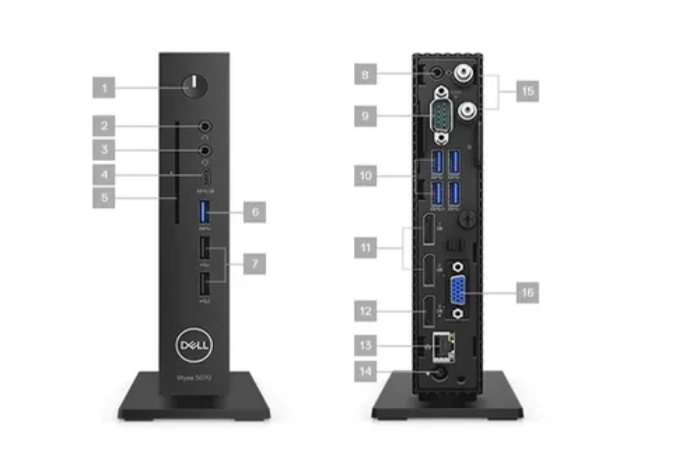
Ports and Slots – Slim Version
The Slim model is designed for compact office environments and standard virtual desktop usage. It includes essential connectivity ports while maintaining a small form factor.
Key ports and slots include:
- USB Ports: Multiple USB ports including USB 3.1 and USB 2.0 for connecting keyboards, mice, storage devices, and other peripherals.
- DisplayPort Outputs: Two DisplayPort connectors for dual-monitor setups.
- Ethernet Port: One Gigabit Ethernet (RJ-45) port for wired network connectivity.
- Audio Ports: A combined headphone and microphone audio jack.
- Serial Port (optional): Used in specialized environments such as retail or industrial systems.
- Kensington Lock Slot: Provides physical security to prevent device theft.
The Slim version focuses on basic office connectivity and efficient virtual desktop performance while keeping the hardware compact and energy-efficient.
Ports and Slots – Extended Version
The Extended version of the Dell Wyse 5070 offers expanded connectivity and is intended for users who need additional display outputs, GPU support, or extra peripherals.
Important ports and slots include:
- Additional DisplayPort Outputs: Supports more monitors than the Slim model and can handle advanced multi-display configurations.
- USB Ports: A larger number of USB 3.1 and USB 2.0 ports for connecting multiple peripherals.
- Gigabit Ethernet Port: Provides fast and reliable network connectivity for enterprise environments.
- PCIe Expansion Slot: Allows installation of additional components such as a graphics card or other expansion modules.
- Optional Fiber or Network Modules: Can support additional networking requirements in corporate infrastructures.
- Audio Jack: Headphone and microphone connectivity for communication applications.
- Kensington Lock Slot: Ensures device security in shared workspaces.
The Extended model is ideal for financial trading desks, control rooms, multi-monitor setups, and advanced virtualization environments, where additional graphics and connectivity capabilities are required.