
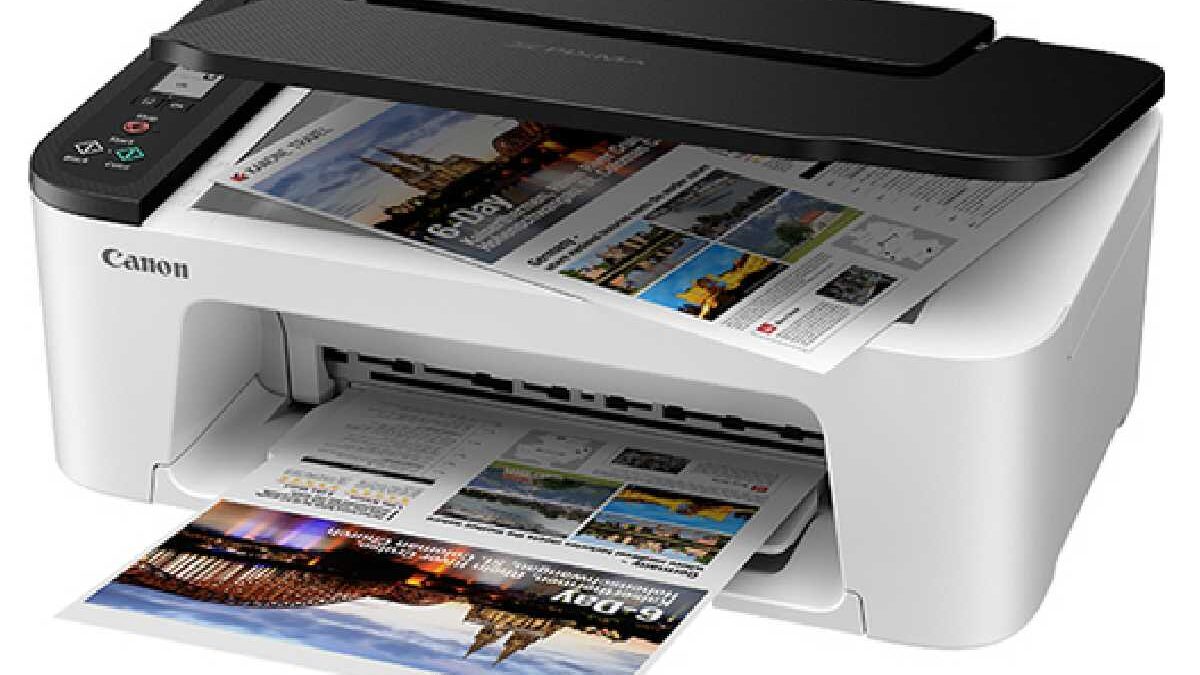
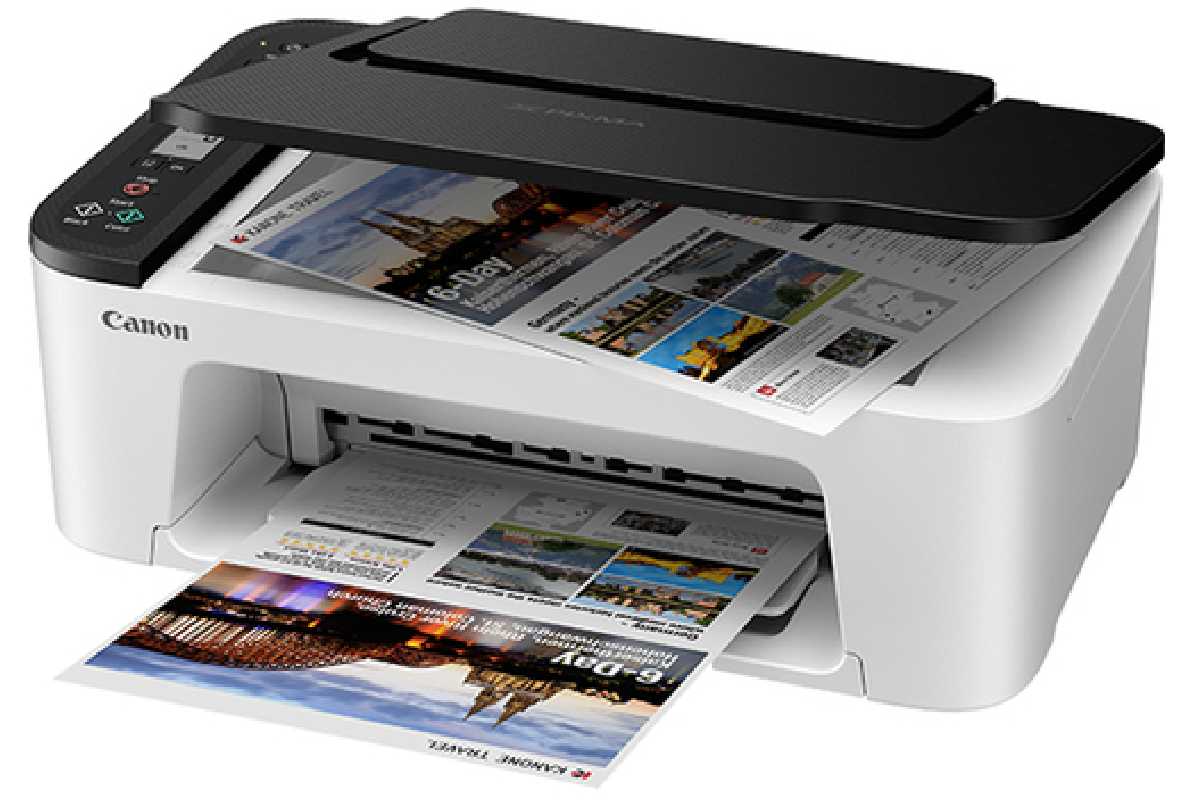
The Canon PIXMA TS3522 is a 3‑in‑1 wireless inkjet printer that supports printing, copying, and scanning. It’s compact, easy to set up, and designed for everyday document and photo tasks with mobile device compatibility.
This article belongs to Computer Hardware
Table of Contents
What Is the Canon Pixma TS3522?
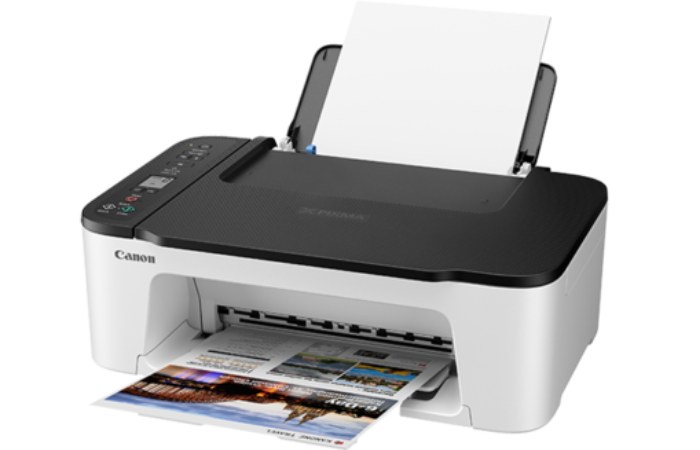
The Canon Pixma TS3522 is a compact all-in-one inkjet printer designed for light home use. It can:
- Scan
- Copy
It supports wireless printing, works with smartphones, and fits comfortably in small spaces — which makes it ideal for apartments, dorm rooms, and home offices.
The Canon Pixma TS3522 belongs to the Pixma TS series by Canon Inc., known for producing reliable home printers at affordable prices.
Quick Overview: Canon Pixma TS3522 Specifications
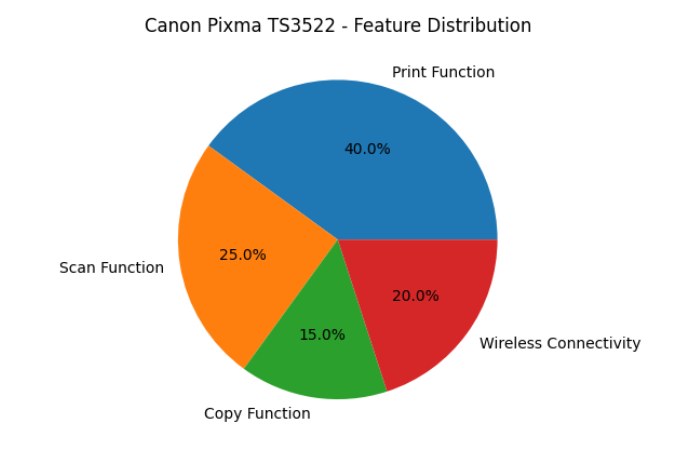
Here’s a simple breakdown of what you’re getting:
| Feature | Details |
| Printer Type | Inkjet All-in-One |
| Functions | Print, Scan, Copy |
| Print Technology | 2-Cartridge FINE Hybrid Ink System |
| Color Printing | Yes |
| Wireless Connectivity | Wi-Fi |
| Mobile Printing | Canon PRINT App, AirPrint, Mopria |
| Print Speed | ~7.7 ipm (Black), ~4 ipm (Color) |
| Paper Capacity | 60 sheets (Rear tray) |
| Max Print Resolution | 4800 x 1200 dpi |
| Scanner Type | Flatbed |
| Display | 1.5” LCD |
| Duplex Printing | Manual |
| Ink Cartridges | PG-275 (Black), CL-276 (Color) |
Design & Build Quality
The TS3522 has a clean, minimal look. It’s available in white and black variants, making it easy to blend into most home setups.
What I Like About the Design:
- Compact footprint
- Lightweight and easy to move
- Rear paper tray saves space
- Simple control panel with LCD
It’s not built like a heavy-duty office printer — and that’s perfectly fine. This model is clearly meant for casual home use.
If you’re printing 10–20 pages per week, it’s more than capable.
If you are comparing it with other compact home printers, you can also explore About HP DeskJet 3772 for another option.
Uses of Canon Pixma TS3522
| Use / Task | Description |
|---|---|
| Document Printing | Print text documents, reports, forms, and PDFs in black & color. Supports A4, Letter, Legal and other sizes. High-quality resolution up to 4800 × 1200 dpi for crisp text and graphics. (thelostmanual.org) |
| Photo Printing | Print vibrant color photos and images on glossy or photo paper (e.g., 4″ × 6″, 5″ × 7″) with borderless options up to 5″ × 7″. |
| Scanning | Scan photos, documents, and images using the flatbed scanner — ideal for digitizing paperwork and photos. |
| Copying | Make quick copies of documents and photos without using a computer. |
| Wireless Printing (Wi-Fi) | Print from smartphones, tablets, and computers over Wi-Fi using the Canon PRINT app, AirPrint (iOS), or Mopria (Android). (thelostmanual.org) |
| Mobile & Cloud Printing | Print directly from mobile apps or cloud sources (Canon PRINT, AirPrint, Mopria). |
| Photo & Document Archiving | Scan documents/photos at up to 600 × 1200 dpi (optical) for digital storage. |
| Borderless Creative Printing | Print creative photo projects like greeting cards or photo layouts with edge-to-edge printing. |
| Home Office Productivity | Ideal for home workstations and small offices for general printing, scanning, and copying needs. (thelostmanual.org) |
| Wireless Direct Printing | Connects to devices without a router using Wi-Fi Direct. |
Functions
| Function | What It Does |
|---|---|
| Printing | Produces color and black-and-white prints from computers, phones, or tablets. |
| Photo Printing | Prints photos with borderless options (up to 5″ × 7″). |
| Scanning | Scans documents, photos, and images using the flatbed scanner. |
| Copying | Makes copies of documents and photos without needing a computer. |
| Wireless Printing | Prints over Wi-Fi from laptops, smartphones, and tablets. |
| Mobile Printing | Supports Canon PRINT app, Apple AirPrint (iOS), and Mopria (Android). |
| Wi-Fi Direct | Lets devices connect and print without a router. |
| Borderless Printing | Enables edge-to-edge photo prints for selected sizes. |
| Document Archiving | Digitizes documents into digital files for storage and sharing. |
| Ink-Efficient Print Modes | Offers basic print quality options to optimize ink use. |
Set Up Experience: Is It Beginner-Friendly?
Yes — and that’s one of its strongest points.
How to Set It Up:
- Unbox and remove protective tapes.
- Plug in and turn on.
- Install ink cartridges.
- Download the Canon PRINT app.
- Connect to Wi-Fi.
The mobile setup is straightforward, especially if you use the Canon PRINT Inkjet/SELPHY app. You can also connect via USB if you prefer a wired setup.
Even if you’re not tech-savvy, you shouldn’t struggle.
For users interested in other computer hardware and compact computing devices, What Is Dell Wyse 5070 provides another useful technology-related resource.
Prices of Canon Pixma TS3522
| Country / Region | Approx. Price | Notes / Source |
|---|---|---|
| 🇮🇳 India | ₹10,959 – ₹23,825 | Prices vary by seller, import listing, and whether additional items are included (e.g., photo paper). Some listings show ~₹10,959 (imported) and up to ~₹23,825 retail offers. |
| 🇬🇧 United Kingdom (UK) | ~£88 (~₹9,800 approx) | Typical retail import offer; VAT & shipping extra at checkout. |
| 🇺🇸 United States (US) | ~$40 – $60 (~₹3,300 – ₹4,900 approx) | Discounted deals and online listings have offered the model at low sale prices (varies by seller and condition). (edealinfo.com) |
Print Quality: Text & Photos
Text Printing
For everyday black-and-white documents, the TS3522 performs well. Text is:
- Clear
- Dark enough
- Smudge-resistant after drying
It’s perfect for:
- School assignments
- Recipes
- Forms
- Light office work
Color Printing
Colors are vibrant for a budget printer. Charts, graphics, and basic photos look decent.
However, if you’re a professional photographer, this isn’t a photo-dedicated machine.
Photo Printing
It can print borderless photos up to 4” x 6”. For family photos and casual prints, the quality is quite impressive for the price range.
Printing Speed: Is It Fast?
Let’s be realistic — this is not a speed demon.
| Type | Speed |
|---|---|
| Black & White | ~7.7 images per minute |
| Color | ~4 images per minute |
It’s fine for small print jobs. But if you regularly print large reports, you might find it slow.
For students and home users? Totally acceptable.
Ink System & Cartridge Costs
The TS3522 uses:
- PG-275 (Black)
- CL-276 (Color)
There are also high-yield XL versions available.
Ink Cost Comparison
| Cartridge Type | Standard Yield | High Yield (XL) |
|---|---|---|
| Black | Lower page count | Higher page count |
| Color | Lower page count | Higher page count |
| Cost Per Page | Higher | Lower |
If you print frequently, always go for XL cartridges. They’re more economical in the long run.
One thing to note: Since it uses a 2-cartridge system (one black, one tri-color), if one color runs out, you must replace the entire color cartridge.
Connectivity & Mobile Printing
This is where the Canon Pixma TS3522 shines.
It supports:
- Wi-Fi
- Apple AirPrint
- Mopria for Android
- Canon PRINT App
You can print directly from:
- iPhone
- Android phone
- Tablet
- Laptop
No cables required.
This makes it super convenient for modern households where everything runs wirelessly.
Scanning & Copying Capabilities
It features a flatbed scanner, suitable for:
- Documents
- ID cards
- Photos
- Certificates
Scanning resolution is good enough for home use.
Copying is simple — just press the copy button. You can choose black or color copies.
It’s not designed for bulk scanning, but it handles occasional use very well.
For more information about computer hardware and related technology, you can also read about PCNOK.
Who Is the Canon Pixma TS3522 Best For?
Let’s break it down:
Ideal For:
- Students
- Home users
- Small families
- Occasional printing needs
- Budget buyers
Not Ideal For:
- Heavy office workloads
- High-volume printing
- Businesses needing fast output
- Professional photo printing
Pros and Cons
Pros
- Affordable price
- Compact size
- Wireless printing
- Easy setup
- Good text quality
- Mobile-friendly
Cons
- Slow print speed
- No automatic duplex printing
- Ink cost can add up
- Small paper capacity (60 sheets)
Canon Pixma TS3522 vs Similar Budget Printers
Let’s compare it quickly with another entry-level Canon model:
| Feature | Canon Pixma TS3522 | Canon Pixma MG3620 |
|---|---|---|
| Duplex Printing | Manual | Automatic |
| Print Speed | Slower | Slightly Faster |
| Display | 1.5” LCD | No LCD |
| Price | Budget | Budget |
| Paper Capacity | 60 Sheets | 100 Sheets |
If automatic duplex printing matters to you, the MG3620 might be better.
But if you want a screen and a more updated design, TS3522 wins.
Maintenance & Longevity
To keep your printer running smoothly:
- Print at least once a week (prevents clogged nozzles)
- Use genuine Canon ink
- Clean print heads occasionally
- Keep it dust-free
With proper care, it can last several years for home use.
Real-World Usage Experience
Here’s what daily life with the Canon Pixma TS3522 looks like:
- Printing school worksheets? Easy.
- Scanning Aadhaar card or documents? No problem.
- Printing family photos? Looks nice on glossy paper.
- Quick copy before leaving home? Done in seconds.
It’s not flashy — it just gets the job done.
And honestly, that’s what most people need.
Is Canon Pixma TS3522 Worth It in 2026?
Yes — if your expectations match its purpose.
This is a budget, entry-level home printer. It’s not meant to replace an office machine. But for:
- Students
- Home printing
- Occasional projects
- Light scanning and copying
It delivers solid value.
If you print less than 50 pages per month, this printer makes sense.
If you print 200+ pages monthly, consider a higher-capacity model or an ink tank printer.
Final Verdict
The Canon Pixma TS3522 is simple, affordable, and practical. It’s designed for everyday users who don’t need advanced features but want reliable wireless printing at home.
You get:
- Good print quality
- Easy setup
- Mobile convenience
- Compact design
Yes, ink costs can be slightly high. Yes, it’s not the fastest printer. But for its price range, it works in accordance with expectations.
And in case you do not want to spend hard, but still have a reliable home printer, Canon Pixma TS3522 is a secure and reasonable option.
For readers who want to understand the hardware that powers computers and other devices, you can also explore Essential Elements of Processor.
For official printer information and support, you can also visit Canon’s official website.